MotiveProvider course 3 of 4 · 10 min · 2 lessons

Motive: inspection & output files

Use the Driver App’s inspection mode and official comment field.

LESSON 1 / 2 · Prepare the Motive inspection workflow

Prepare the Motive inspection workflow

Understand inspection mode and the output file.

The view and the file have different jobs

Motive’s inspection mode shows duty records. Send Output File sends the standardized ELD data for inspection. For an ordinary US roadside review, have today and the prior seven days available.

Start while safely parked. Check driver, vehicle, and log details before sending.
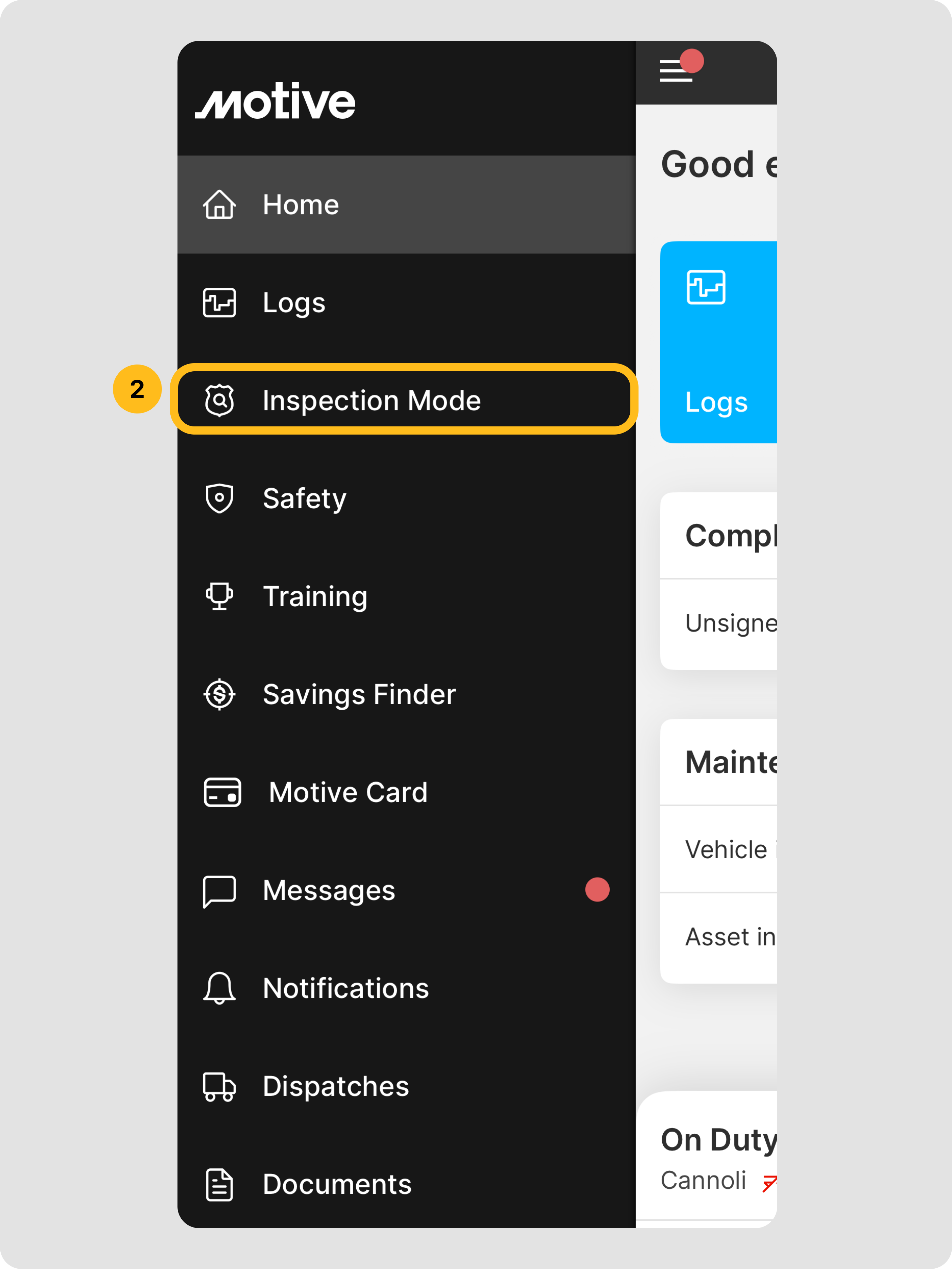
Official Motive main menu highlighting DOT Inspection Mode
Open inspection mode from the main menu. © Motive. Official source · Click image to enlarge.

The viewing screen leads to the separate output-file controls.

Open the transfer controls

  1. Open the main menu.
  2. Select DOT Inspection Mode / inspection mode.
  3. Choose Send Output File.
  4. Select the vehicle if prompted.

Read the source

All courses

Scope: ordinary US interstate property-carrying operations unless specified. Teaching examples are illustrative. Review the linked current sources and carrier policy. Content reviewed October 4, 2026.

Book a demo

Demo video coming soon

We’re putting the finishing touches on it. In the meantime, book a live demo with our team or send us a message.

Contact us