MotiveProvider course 3 of 4 · 10 min · 2 lessons

Motive: inspection & output files

Use the Driver App’s inspection mode and official comment field.

LESSON 2 / 2 · Complete the Motive routing fields

Complete the Motive routing fields

Send the file with the officer’s supplied information.

What Official Comment does

Official Comment holds the officer’s routing text. It helps identify the inspection file. Copy it exactly; a typo can make a sent file hard to locate. Choose the officer’s requested method and follow its recipient prompts.
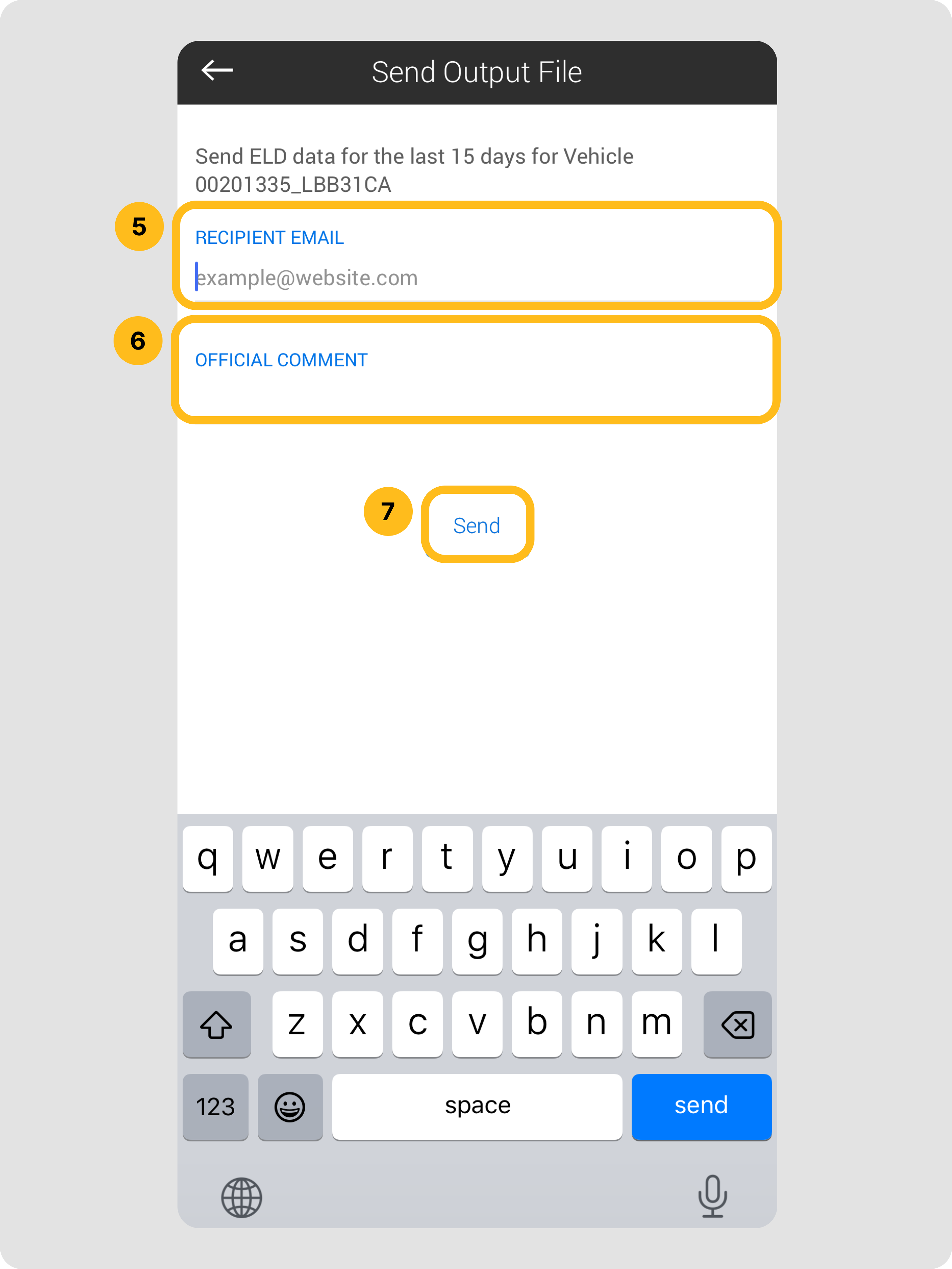
Official Motive Send Output File screen highlighting recipient email, Official Comment, and Send
Enter routing text in Official Comment. © Motive. The displayed period is sample data. Official source · Click image to enlarge.

Completing the fields prepares the file. Sending and checking the result completes the transfer.

Check delivery, not just data entry

  1. Check method and recipient prompts.
  2. Enter the supplied official comment.
  3. Tap Send and check the result.
  4. Follow the officer’s receipt instructions.

If sending fails, check the connection and retry. Follow Motive support guidance if it still fails. Entering a recipient alone does not prove delivery.

Read the source

Previous lesson

Scope: ordinary US interstate property-carrying operations unless specified. Teaching examples are illustrative. Review the linked current sources and carrier policy. Content reviewed October 4, 2026.

Book a demo

Demo video coming soon

We’re putting the finishing touches on it. In the meantime, book a live demo with our team or send us a message.

Contact us