Motive inspection mode: displaying the duty record
Support the driver’s inspection workflow and check that the requested record is ready.
What inspection mode and the output file do
Motive’s inspection mode displays duty records for roadside review. An output file is the standardized ELD data file sent for inspection through Send Output File. Opening inspection mode does not itself send that file.
Help the driver prepare the right driver, vehicle, and dates. For an ordinary US review, today and the previous seven days must be available before the requested transfer is attempted.
Have the driver start while safely parked. Verify driver, vehicle, and log details before sending.
Find inspection mode in the menu
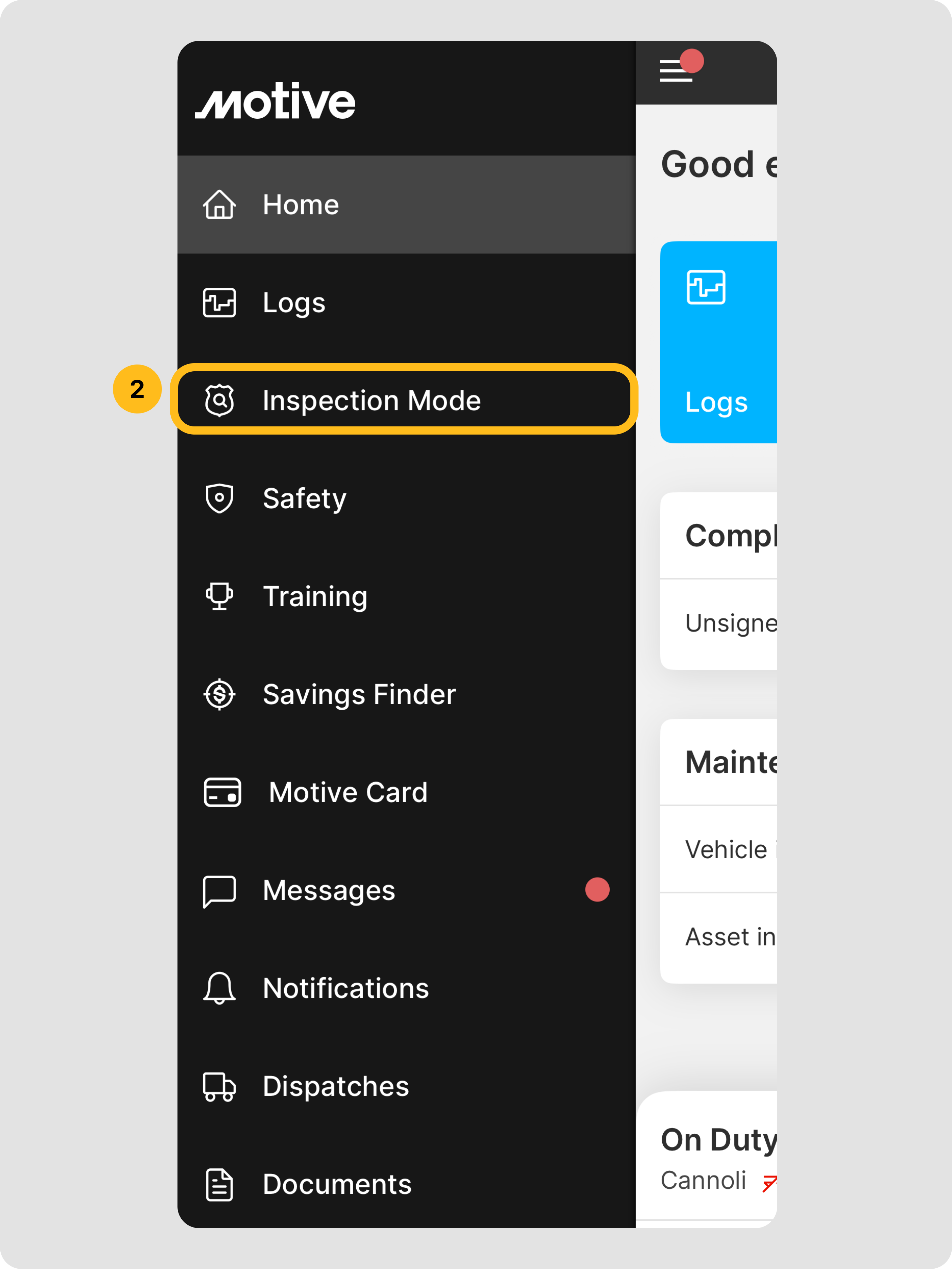
What to check on this screen
- DOT Inspection Mode is the menu entry highlighted here. Have the driver open it while safely parked.
- Verify the driver, vehicle, and log dates before a requested transfer.
Open the transfer controls
- Ask the driver to open the main menu.
- Guide the driver to DOT Inspection Mode / inspection mode.
- The driver chooses Send Output File when transfer is requested.
- Verify the vehicle selected when prompted.